Avalon is the daily operating system for an NDT shop. The office runs the dashboards, the field crew runs the procedures — and every keystroke, every photo, every signed form syncs in real time across every screen, every panel, and every role. There's no email-the-spreadsheet, no nightly batch, no hand-off between systems.
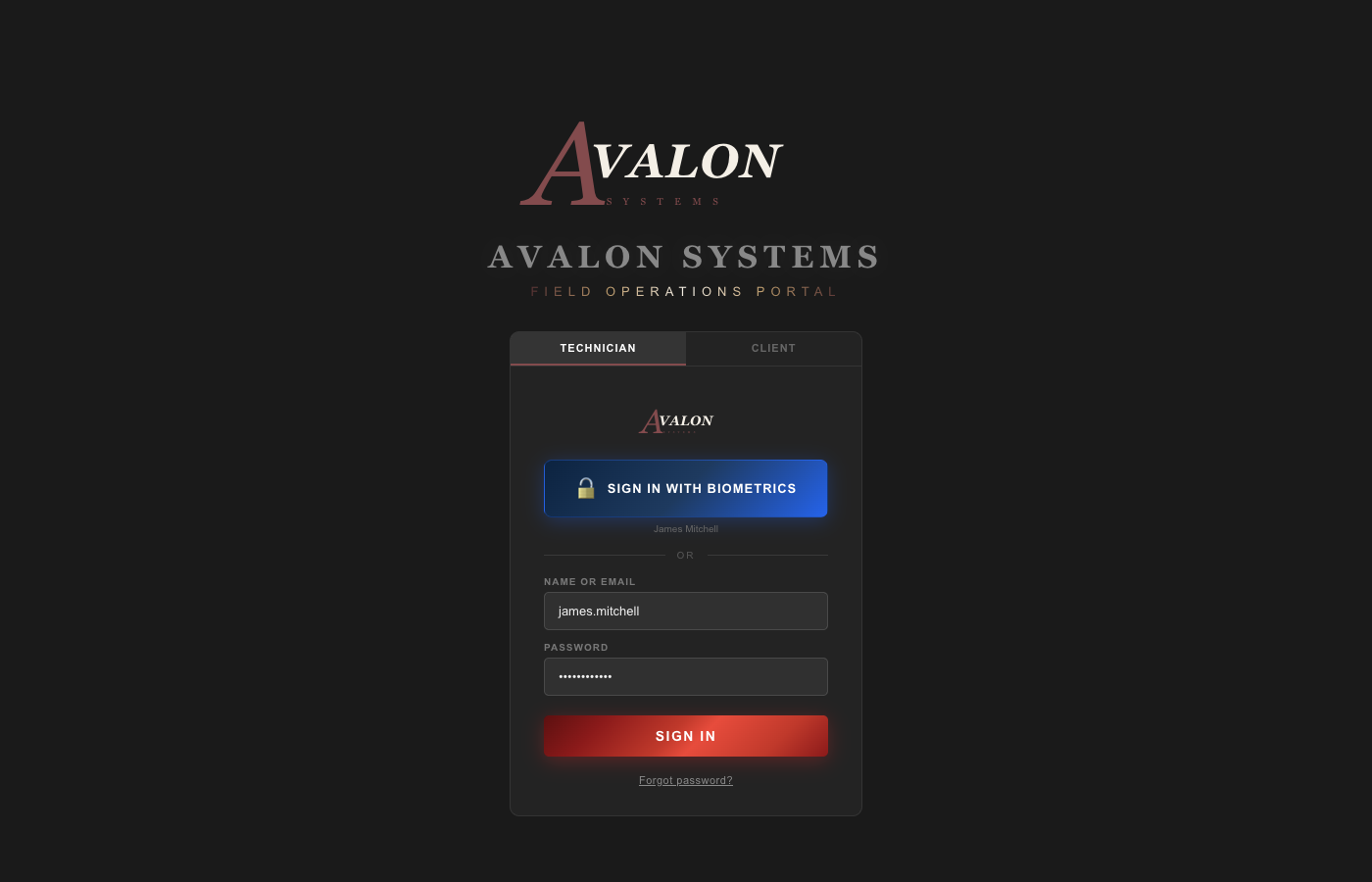
Technicians sign in with their username, password, or Face ID / fingerprint. Clients sign in to their own dedicated portal — same address, separated experience. Trusted shop devices can stay signed in for the long haul without ever sharing a password.
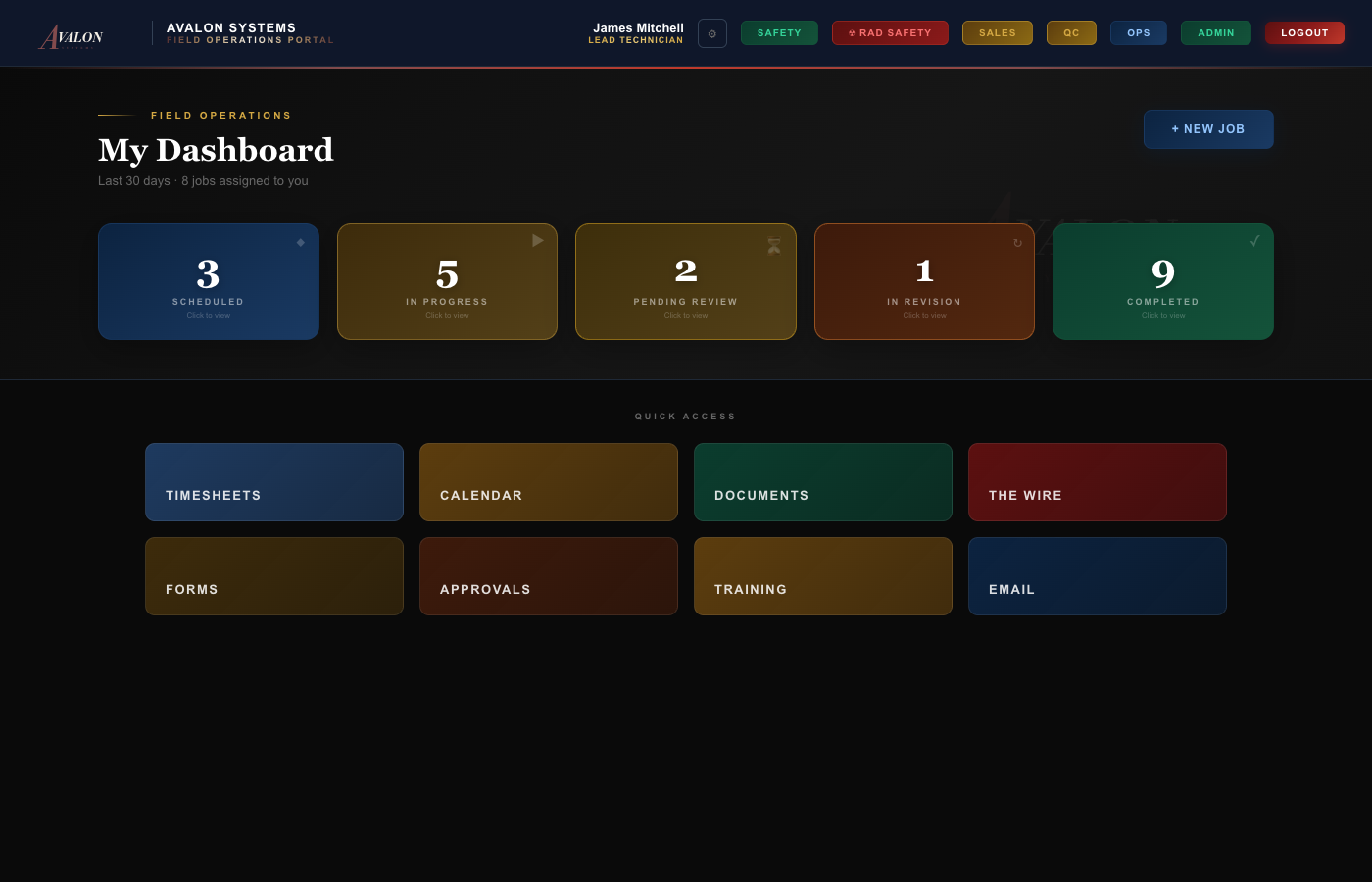
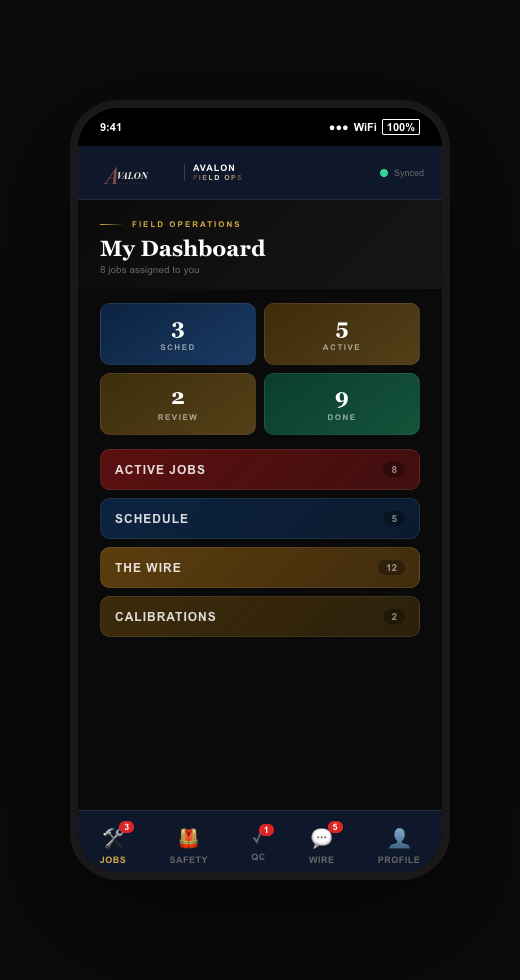
The role buttons in the top-right open the management panels — Safety, Rad Safety, Sales, QC, Ops, Admin — color-coded so every department has a visual identity. Below them, the user's personal dashboard: active jobs, schedule, charges to approve, reports pending, training due, and unread Wire messages.
The technician portal is what a tech sees when they sign in — on the office desktop, on the truck's laptop, or on the phone in their pocket. It's the shop's most-used surface, and the part of Avalon that customers rave about.
The tech's home view shows their assigned jobs — one tile per job, with status, location, methods, and crew. One tap drills into the packet: JSA, charge sheet, shipping paper, reports, photos. The tech never has to ask "where's the paperwork?" — it's all attached to the job, where it belongs.
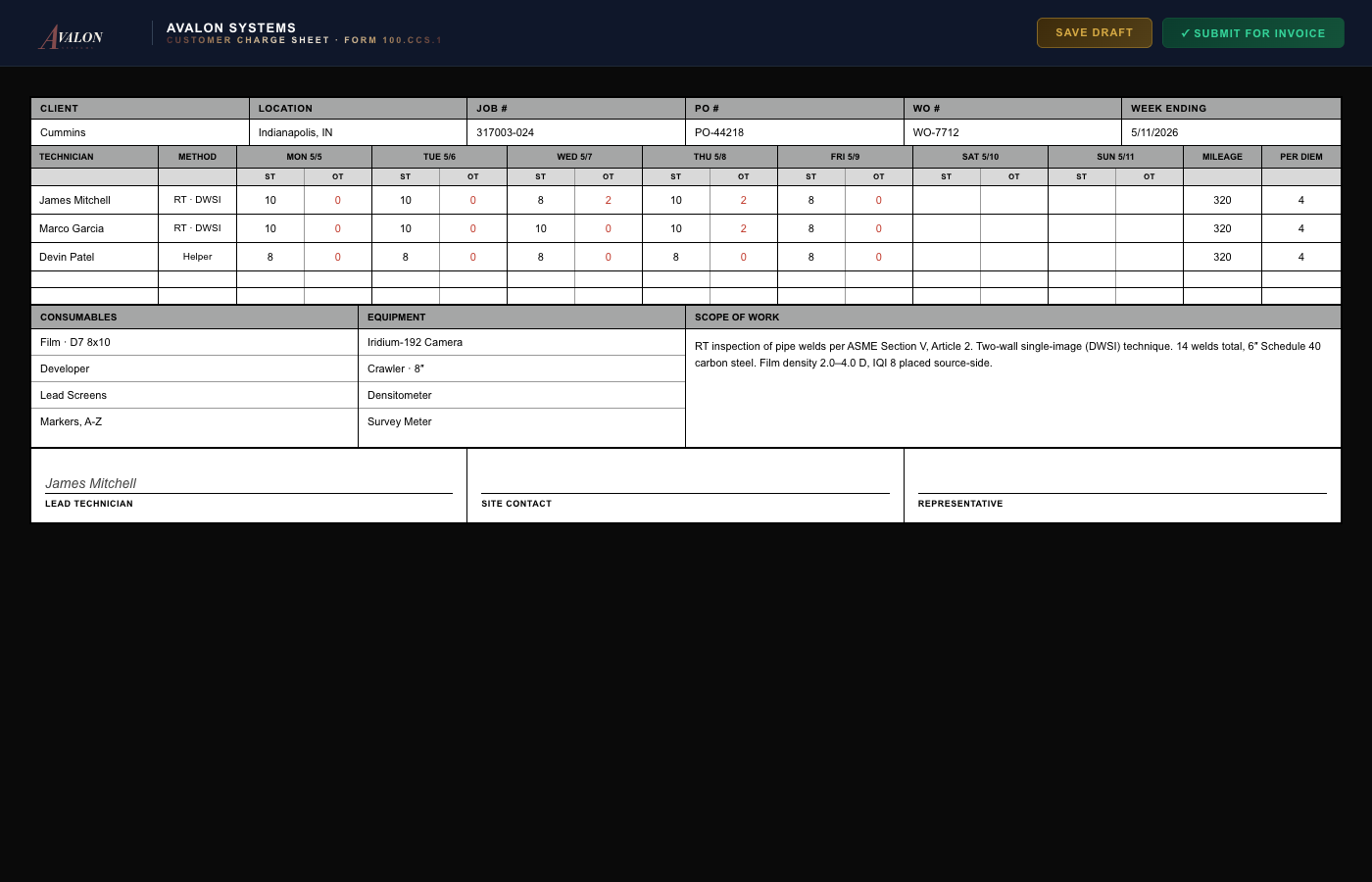
This is what every NDT shop's owner has been dreaming of. The lead tech opens the charge sheet for the job, picks the crew, and fills in hours by day — straight time, overtime, and per diem — for each tech. Mileage. Per-diem days. Done.
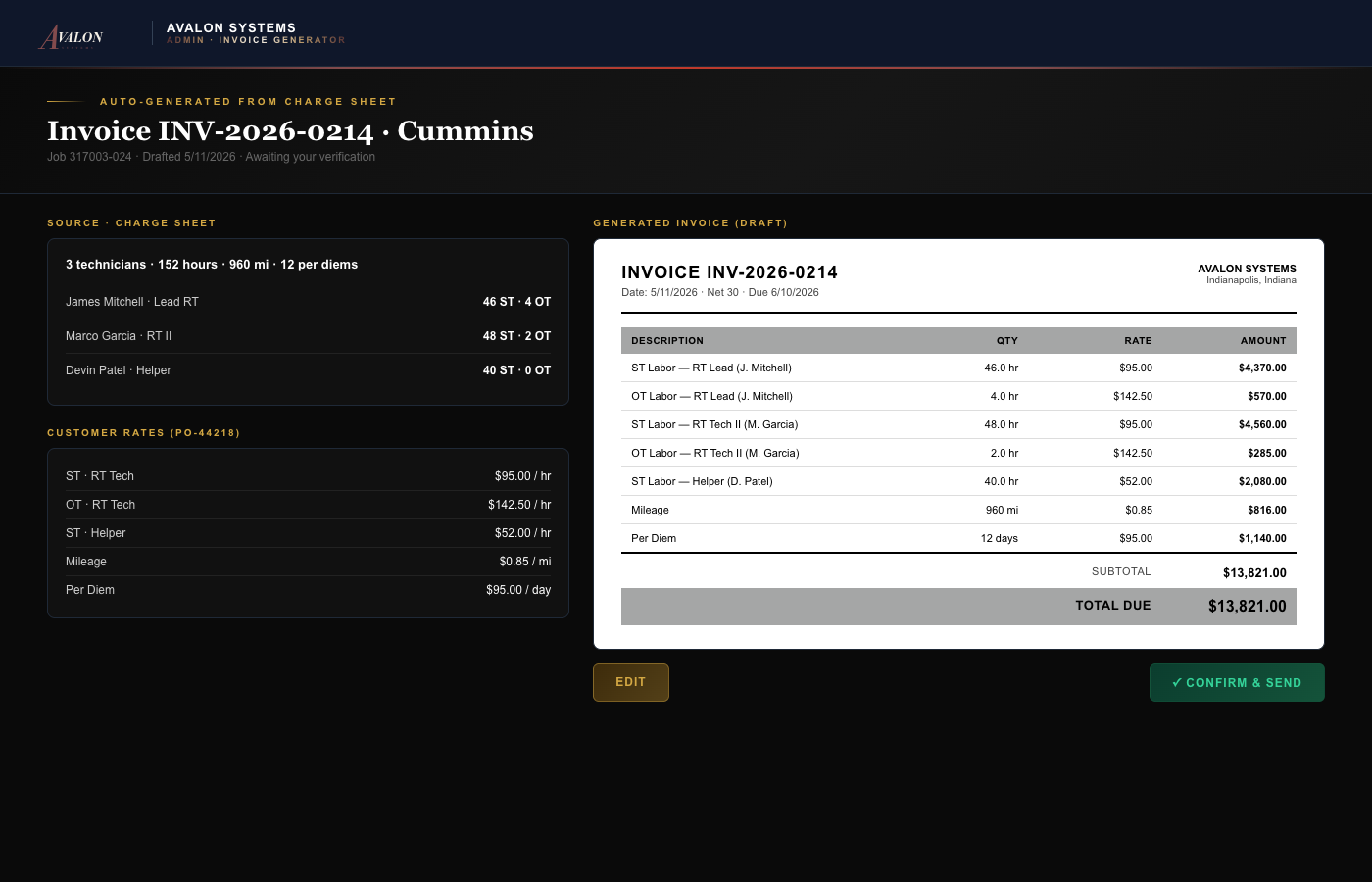
When the lead submits, Avalon auto-creates an invoice draft using the customer's contracted rates. The owner gets a push notification, opens the draft, verifies the line items, and clicks Confirm & Send. From "tech finishes the week" to "invoice goes out the door" is now a five-minute review — not a four-hour spreadsheet rebuild.
Each NDT report template fills exactly one page in the format the client requires. The tech fills it out, the client signs it on the same screen, and a single combined PDF is generated for the job packet — every signed sheet, every photo, every charge document, in order. No email-to-self, no copy-paste, no "let me find that in my downloads folder."
Sub-tabs for Jobs, Status Board, Calendar, Timesheets, and Time-Off — each one a color-coded view of what's happening across every active engagement. Click any row to drill into that job's packet, photos, and charges.
No NDT software has done this well. The crew fills in their hours; the platform does the math, applies the rates, and generates a verified invoice draft. The owner reviews and clicks send. The customer gets the bill while the equipment is still warm.
One row per tech, one column per day. Straight time, overtime, per diem, mileage. The lead can pull each crew member's recorded hours from the schedule grid as a starting point — no double entry.
The platform pulls the customer's contracted rates, multiplies through the charge sheet, and produces a line-item invoice draft. The owner sees the source side-by-side with the result, verifies, and confirms.
The shop owner reviews the auto-drafted invoice on a phone over coffee Saturday morning. One tap to confirm, the customer gets the bill, and revenue is booked. No four-hour Sunday spreadsheet session. No "I'll get to that next week."
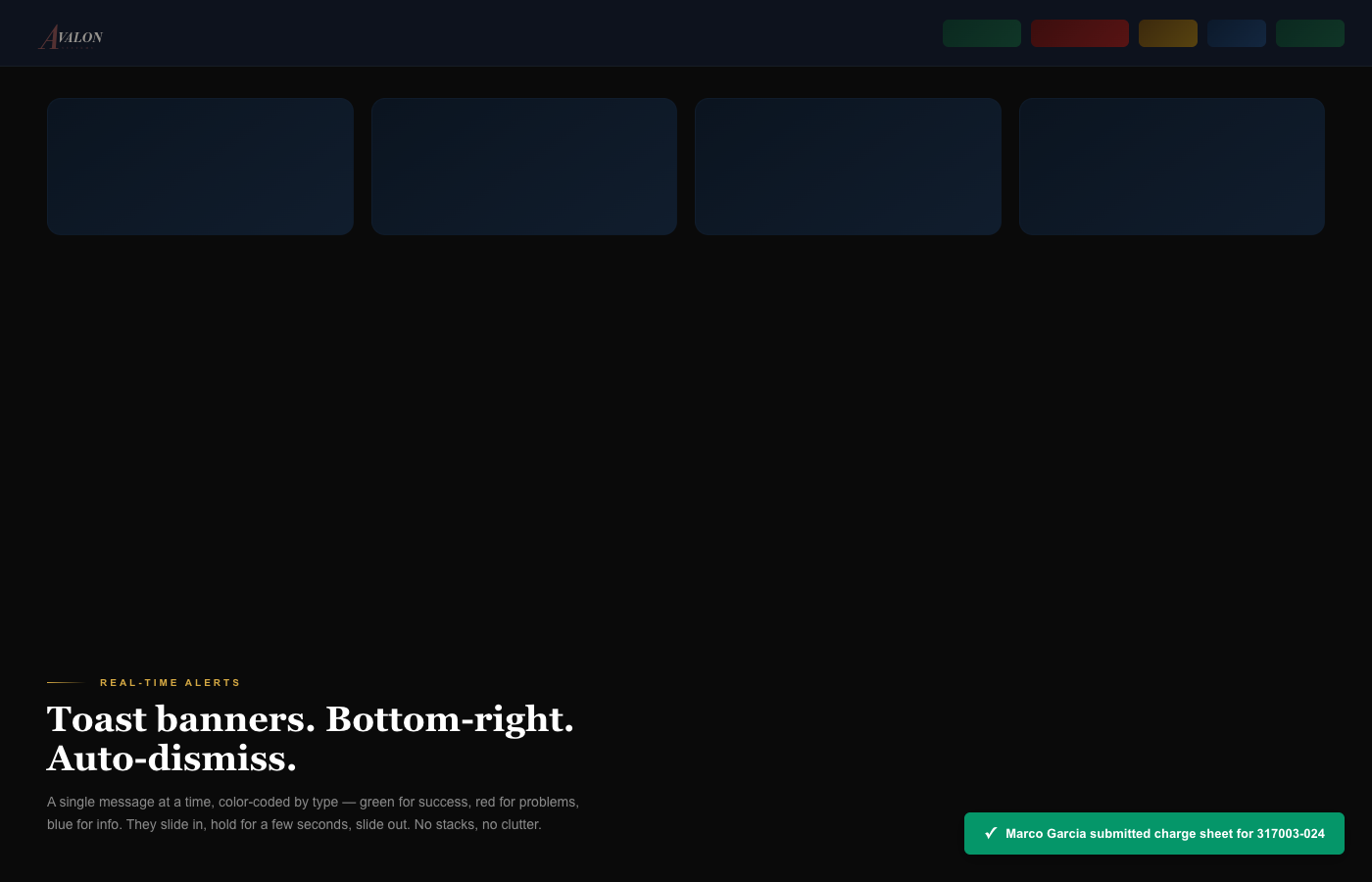
Crew submissions, calibration alerts, client messages, job assignments — pushed to desktop and phone the moment they happen, not on a five-minute polling cycle. No vendor-of-the-month push service in the middle. The badge on the tab bar updates the second the data does.
The lead tech presses Submit; the owner gets a push that an invoice draft is waiting.
Every densitometer, probe, and gauge alerts seven days out and again on the day.
The customer sends a question; the assigned tech and the office both see it instantly.
Dispatch updates the schedule; the tech's phone vibrates before they finish their coffee.
The tech finishes a report; QC gets a push and an inline approval card on the dashboard.
An invoice crosses 30 days unpaid; admin gets a push with a one-tap follow-up email.
Avalon is built so that desktop and mobile aren't two products that sometimes synchronize — they're one product running on two screens. The office sees a charge sheet update mid-keystroke. The tech sees a job reassignment before they put their phone down. Photos taken on a phone show up in the desktop report a second later.
Permissions follow the user, not the device. A tech promoted to QC keeps the same login, gains the new panel, and loses nothing they were already trusted with. Below is what each panel actually contains — the real screens with the real tile structure.
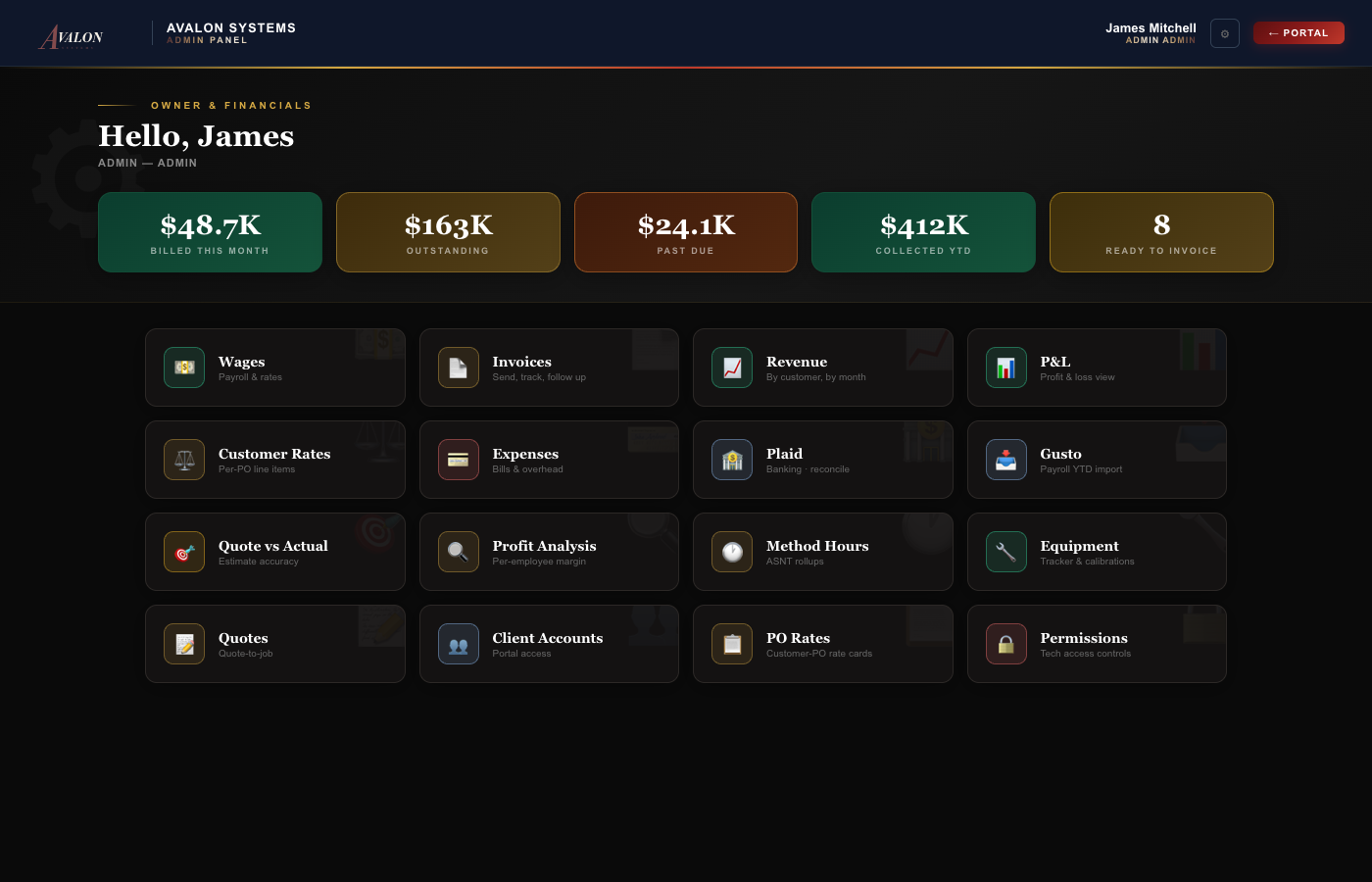
Past-due, due-soon, outstanding, and collected — at a glance, in five color-coded hero tiles. Below them, the working surface: invoices, revenue, P&L, customer rates, expenses, banking, payroll, equipment, profitability. Every tile a working part of the business, every change written back to the same database the rest of the shop sees.
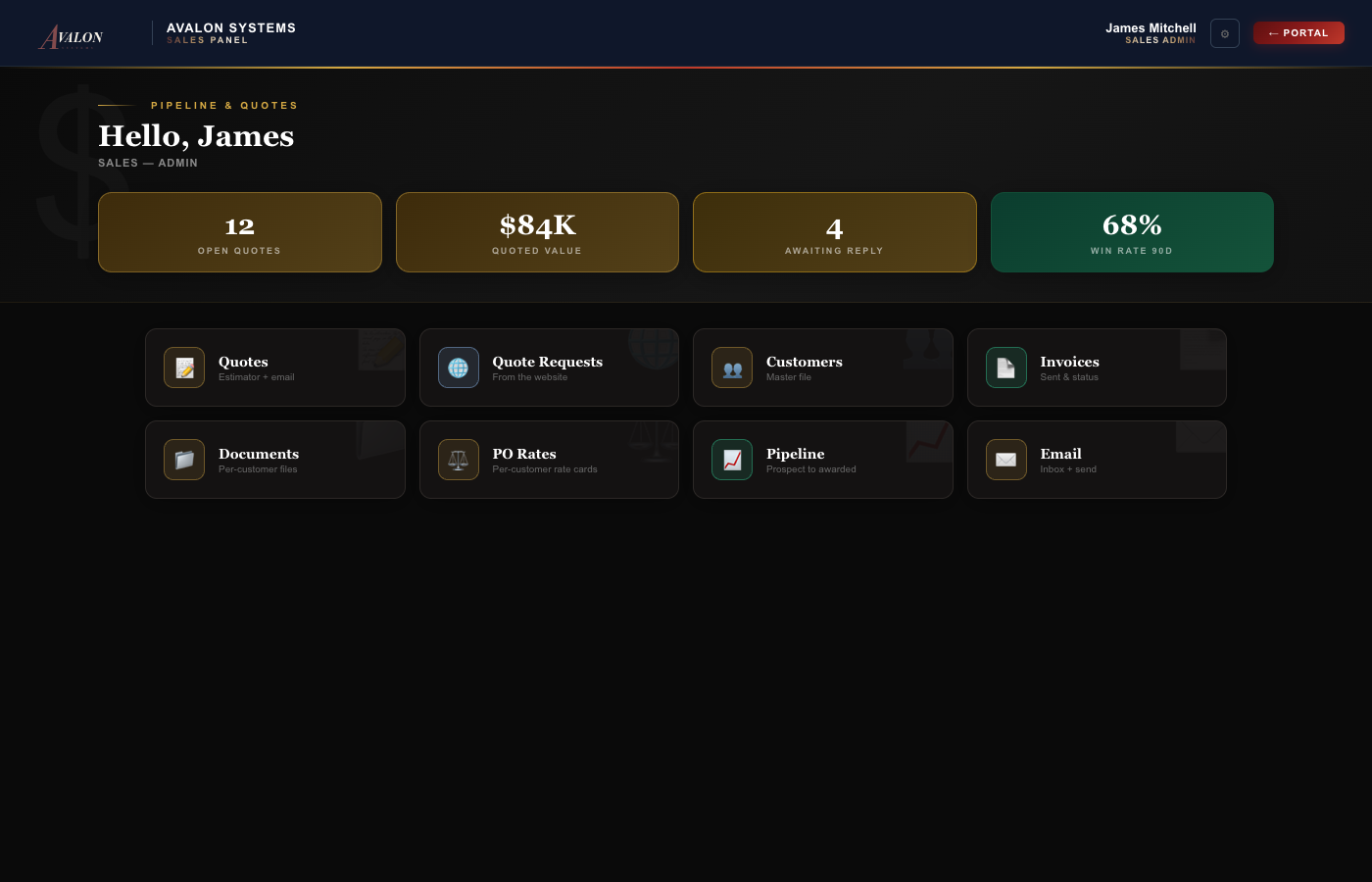
Sales is what the office runs from when the phone rings. The estimator builds a quote in minutes from method libraries and shop rate cards. The PDF goes out, the customer signs, the quote becomes a job — already loaded into Operations with the right rates, the right scope, and the right contacts.
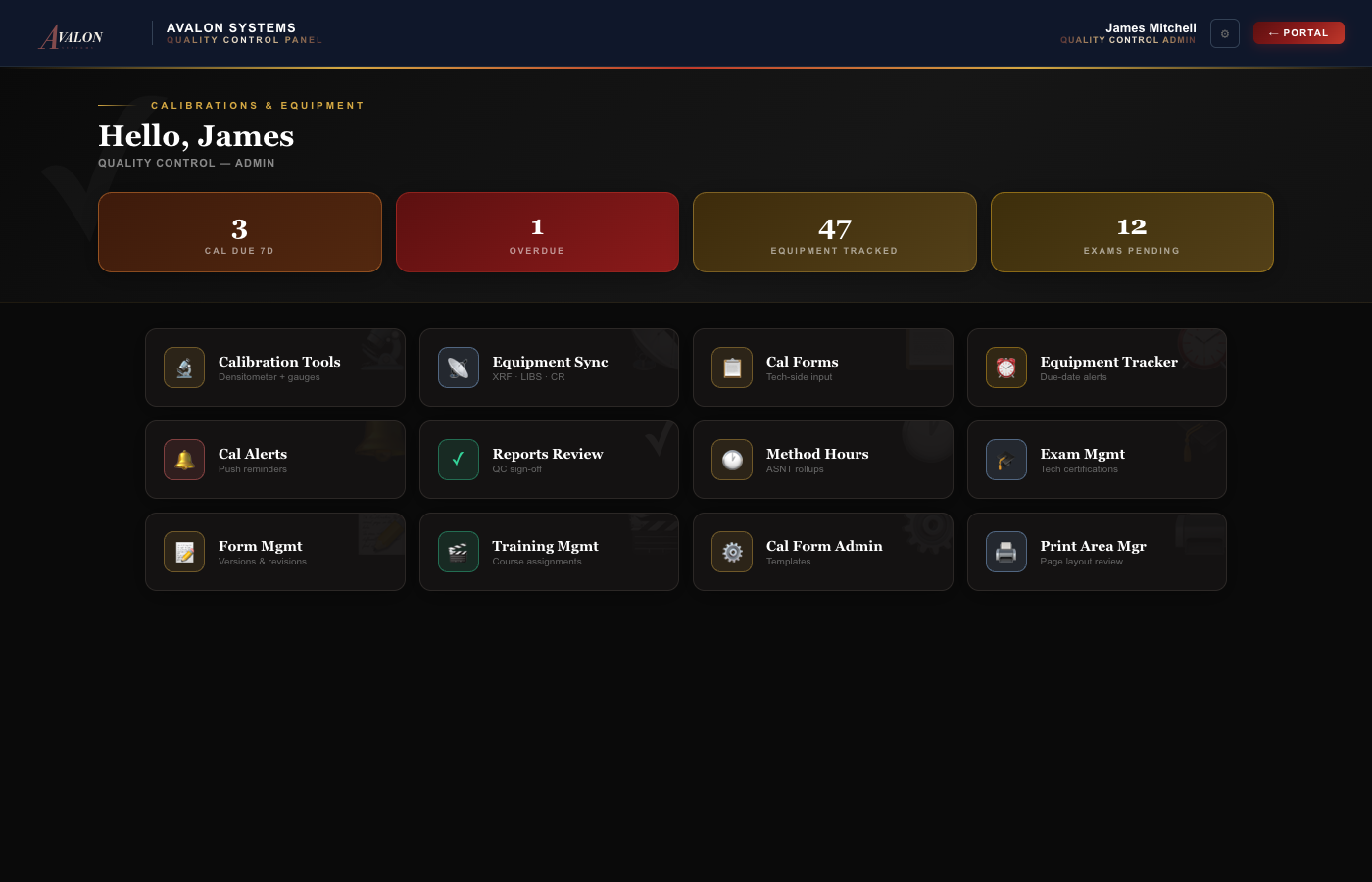
QC is the department that has to prove everything was done right. Avalon's QC panel keeps the equipment under calibration, the techs current on their methods, and every form on the right revision. The Calibration Tools tile drives the densitometer directly from the bench — no separate utility, no transcription error.
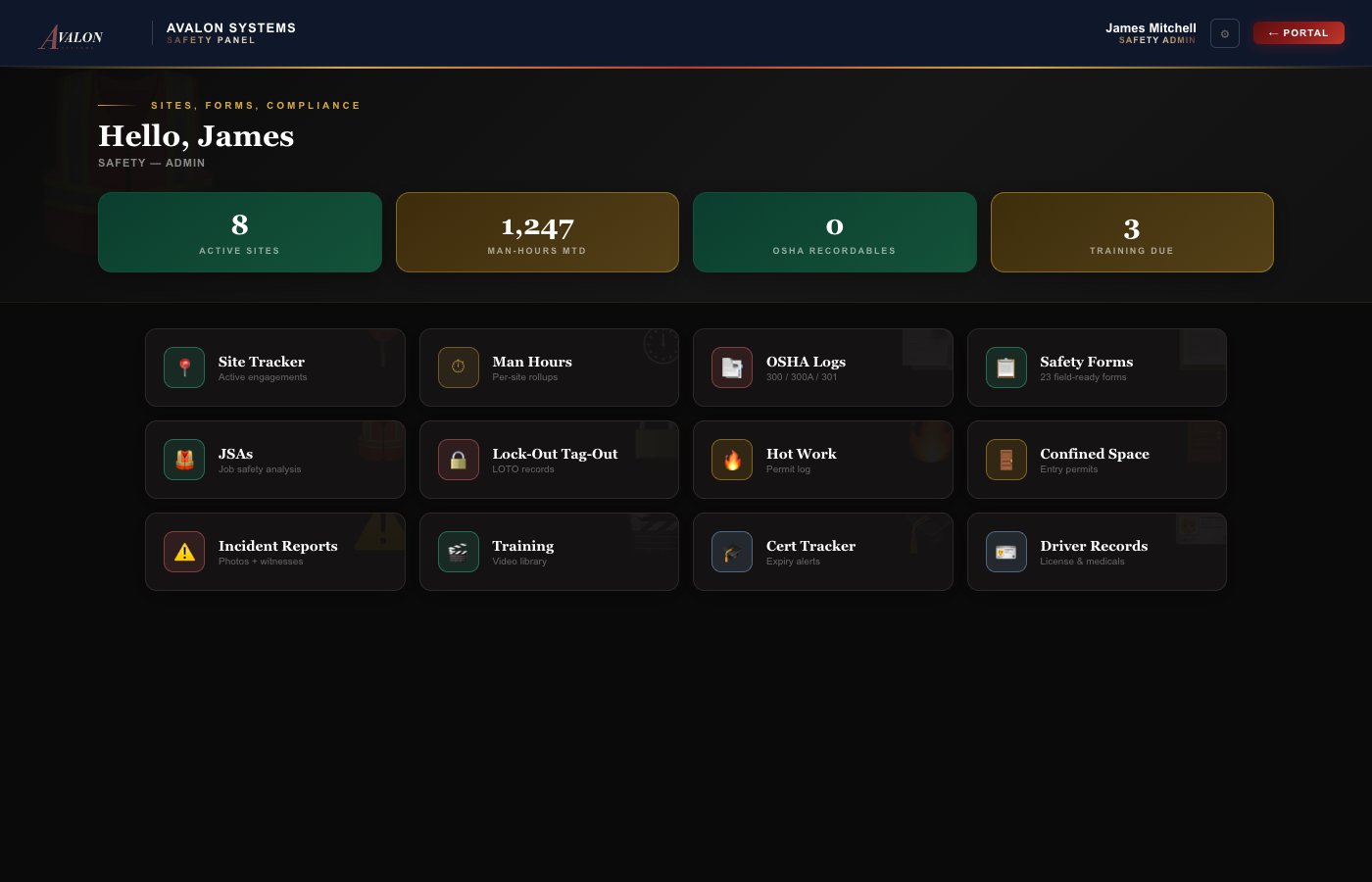
Safety is the department that has to defend a binder of records on a moment's notice. The Avalon Safety panel keeps it alive: site tracker, OSHA logs, twenty-three field forms ready to fill in offline, training-video assignments with completion tracking, and expiry alerts on every license, certification, and dosimeter badge in the shop.
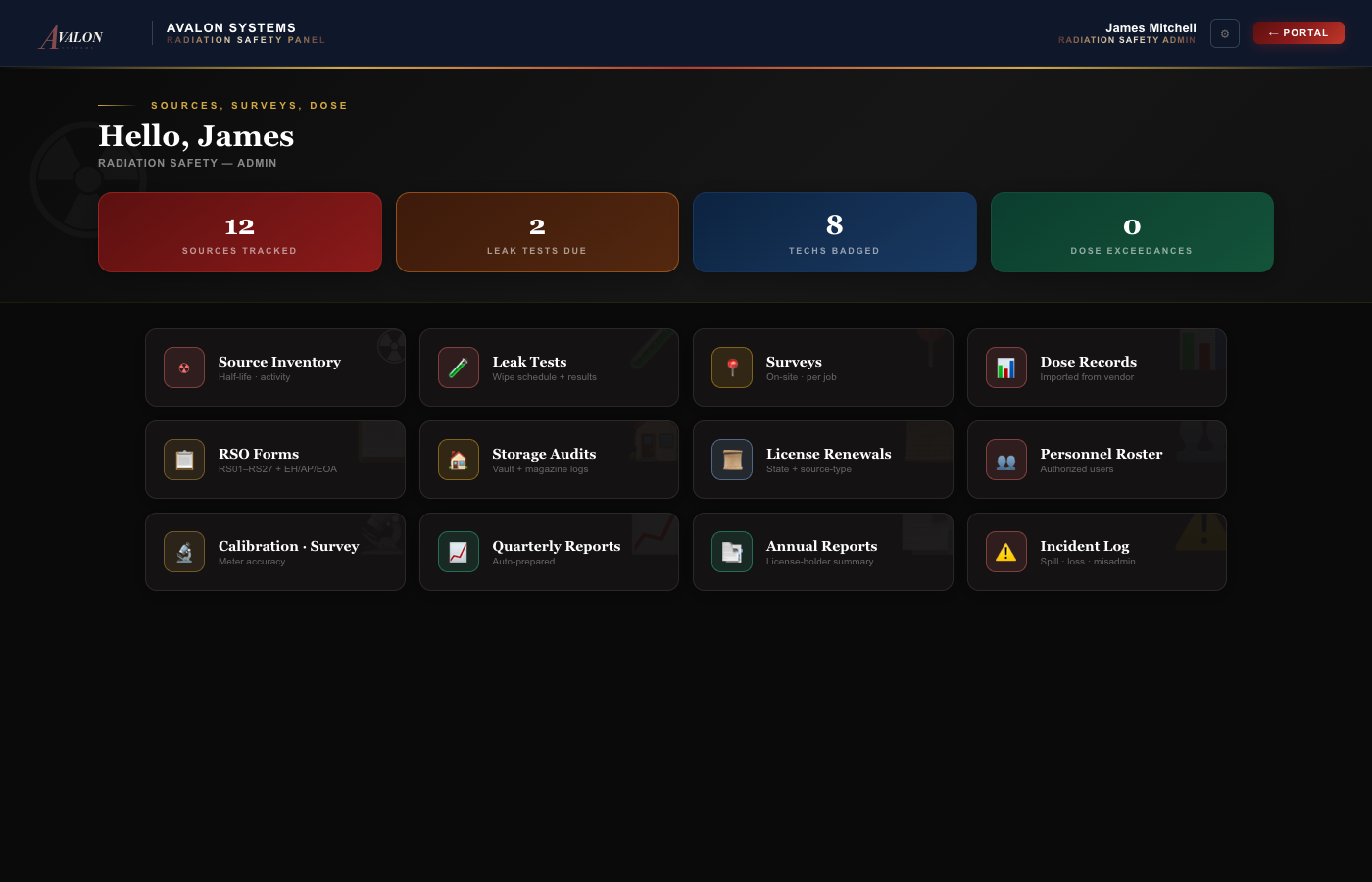
For the RSO who has to know where every source is, every day. Avalon's Rad Safety panel tracks each source through its full lifecycle — leak-tests, decay calculations, dose imports from the badge vendor, surveys keyed to the same customer and job that Operations dispatched the crew on. Quarterly and annual reports prepare themselves in line with the work.
Operations is the panel covered in depth above — job board, schedule grid, dispatch, mobile field app, charge sheets, packets, photos. This is the panel a working shop spends the most time inside.